前言
这段时间一直在做可视化,在我的项目中有一部分是电力巡检的数据可视化。其中的数据看板比较简单,我将其单独抽离出来形成一个demo,为保密demo中数据非真实数据。先看效果。
具体效果
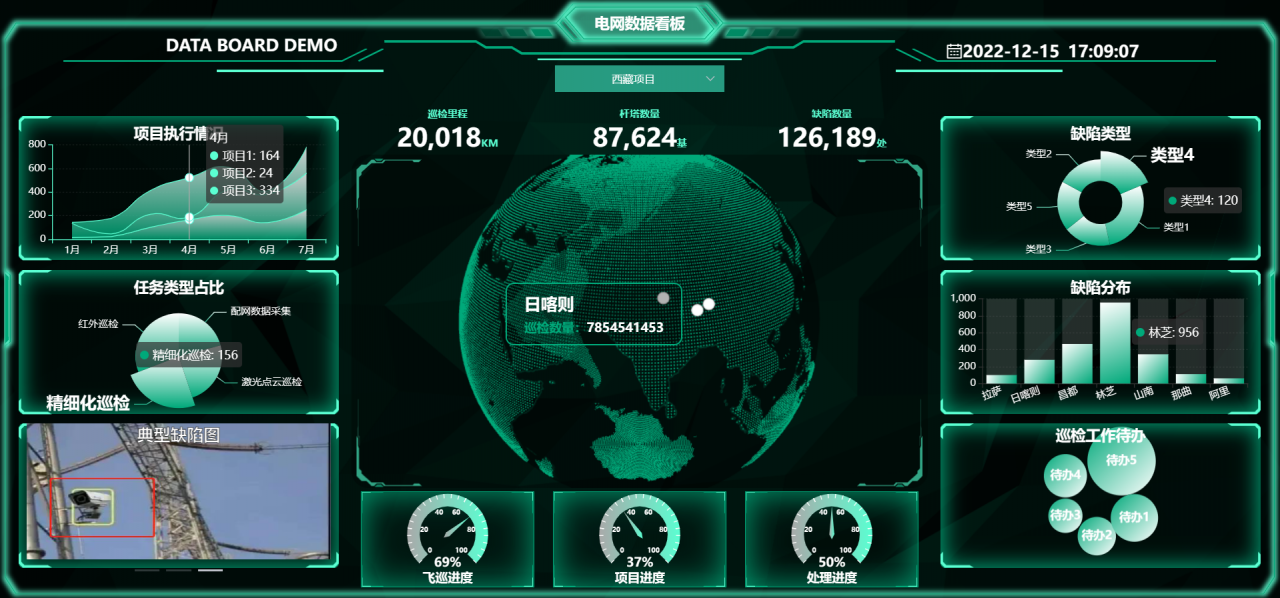
链接相关
- 浏览链接:http://xisite.top/original/data-board/index.html#/
- 项目链接(觉得有用的记得star哦):https://gitee.com/xi1213/data-board
实现目标
- 可根据项目切换不同看板数据。
- 数据的展现形式包括:折线图,柱状图、饼图、环图、进度图、轮播图。
- 包含一个可控制的3d球体,球面打点具体数据。
具体实现
数据切换
没啥技术含量,demo数据我是写死,要使用的可以直接拿去替换为自己的接口数据。
| projectPtions: [ | |
| { | |
| value: ‘1’, | |
| label: ‘四川项目’, | |
| sphereData: [ | |
| { | |
| position: [102, 30], | |
| pointName: “成都”, | |
| value: 31889355 | |
| }, | |
| { | |
| position: [102, 27],//经度,纬度 | |
| pointName: “西昌”, | |
| value: 13578453 | |
| }, | |
| { | |
| position: [107, 31],//经度,纬度 | |
| pointName: “达州”, | |
| value: 7854541453 | |
| }, | |
| ], | |
| msg: { | |
| distance: 12245,//巡检距离 | |
| towerNum: 85345,//杆塔数量 | |
| defectNum: 208//缺陷数量 | |
| }, | |
| lineData: [ | |
| [], | |
| [], | |
| [] | |
| ],//折线图数据 | |
| pieData: [234, 124, 156, 178],//饼图数据 | |
| ringData: [100, 120, 104, 140, 160],//环图数据 | |
| histData: { | |
| xAxisData: [‘成都’, ‘南充’, ‘宜宾’, ‘西昌’, ‘眉山’, ‘乐山’, ‘攀枝花’], | |
| seriesData: [635, 880, 1165, 135, 342, 342, 524] | |
| },//柱状图数据 | |
| proData: [29, 67, 90],//进度图数据 | |
| }, | |
| { | |
| value: ‘2’, | |
| label: ‘西藏项目’, | |
| sphereData: [ | |
| { | |
| position: [91.11, 29.97],//经度,纬度 | |
| pointName: “拉萨”, | |
| value: 78453 | |
| }, | |
| { | |
| position: [80, 32],//经度,纬度 | |
| pointName: “阿里”, | |
| value: 13578453 | |
| }, | |
| { | |
| position: [88, 29],//经度,纬度 | |
| pointName: “日喀则”, | |
| value: 7854541453 | |
| }, | |
| ], | |
| msg: { | |
| distance: 20018,//巡检距离 | |
| towerNum: 87624,//杆塔数量 | |
| defectNum: 126189//缺陷数量 | |
| }, | |
| lineData: [ | |
| [], | |
| [], | |
| [] | |
| ],//折线图数据 | |
| pieData: [134, 154, 156, 198],//饼图数据 | |
| ringData: [120, 180, 114, 120, 110],//环图数据 | |
| histData: { | |
| xAxisData: [‘拉萨’, ‘日喀则’, ‘昌都’, ‘林芝’, ‘山南’, ‘那曲’, ‘阿里’], | |
| seriesData: [100, 280, 467, 956, 345, 111, 61] | |
| },//柱状图数据 | |
| proData: [69, 37, 50],//进度图数据 | |
| }, | |
| { | |
| value: ‘3’, | |
| label: ‘浙江项目’, | |
| sphereData: [ | |
| { | |
| position: [119, 27],//经度,纬度 | |
| pointName: “温州”, | |
| value: 78453 | |
| }, | |
| { | |
| position: [120, 29],//经度,纬度 | |
| pointName: “宁波”, | |
| value: 13578453 | |
| }, | |
| { | |
| position: [120, 30],//经度,纬度 | |
| pointName: “嘉兴”, | |
| value: 7854541453 | |
| }, | |
| ], | |
| msg: { | |
| distance: 18722,//巡检距离 | |
| towerNum: 122334,//杆塔数量 | |
| defectNum: 127895//缺陷数量 | |
| }, | |
| lineData: [ | |
| [], | |
| [], | |
| [] | |
| ],//折线图数据 | |
| pieData: [134, 174, 156, 108],//饼图数据 | |
| ringData: [190, 110, 174, 130, 110],//环图数据 | |
| histData: { | |
| xAxisData: [‘杭州’, ‘宁波’, ‘温州’, ‘嘉兴’, ‘湖州’, ‘金华’, ‘舟山’], | |
| seriesData: [1035, 100, 565, 435, 142, 842, 124] | |
| },//柱状图数据 | |
| proData: [89, 37, 60],//进度图数据 | |
| }, | |
| ], |
数组中的每一个对象代表一个项目。

切换项目时直接使用element的el-select切换即可。由于图表组件是区分了组件的,每次切换数据时需要根据不同数据重绘图表。
折线图
图中可以看到一共只有九个图表。比较简单,直接使用echarts配置即可。这是折线图。
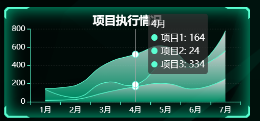
可能会感觉奇怪,折线图咋会这样呢?那是因为在配置中设置了areaStyle与smooth,使折线图变成了平滑的堆叠面积图,本质还是折线图。areaStyle中的color可以接受echarts.graphic.LinearGradient,使其具有渐变的颜色,LinearGradient的前四个参数分别为渐变色的起始点与终止点的x值与y值,后面的值为颜色值。
| let option = { | |
| color: [], | |
| title: { | |
| text: ‘项目执行情况’, | |
| top: “5%”, | |
| left: ‘center’, | |
| textStyle: { | |
| color: “#fff” | |
| } | |
| }, | |
| tooltip: { | |
| trigger: ‘axis’, | |
| axisPointer: { | |
| label: { | |
| backgroundColor: ‘#6a7985’ | |
| } | |
| } | |
| }, | |
| grid: { | |
| top: “20%”, | |
| left: ‘3%’, | |
| right: ‘4%’, | |
| bottom: ‘3%’, | |
| containLabel: true | |
| }, | |
| xAxis: [ | |
| { | |
| type: ‘category’, | |
| data: [], | |
| axisLabel: { | |
| color: “#fff”, | |
| }, | |
| axisLine: { | |
| lineStyle: { | |
| color: this.dataVColor[1] | |
| } | |
| } | |
| } | |
| ], | |
| yAxis: [ | |
| { | |
| type: ‘value’, | |
| axisLabel: { | |
| color: “#fff”, | |
| }, | |
| axisLine: { | |
| lineStyle: { | |
| color: this.dataVColor[1] | |
| } | |
| }, | |
| splitLine: { | |
| show: true,//网格设置 | |
| lineStyle: { | |
| color: “#70707033”, | |
| width: 1, | |
| type: “dotted”,//虚线 | |
| }, | |
| }, | |
| } | |
| ], | |
| series: [] | |
| }; | |
| option.xAxis[0].data = chartData.xAxisData; | |
| chartData.seriesData.forEach(s => { | |
| option.color.unshift(this.dataVColor[1]);//注意颜色添加的顺序 | |
| option.series.push( | |
| { | |
| animationDuration: 3000,//动画时间 | |
| animationEasing: “cubicInOut”,//动画类型 | |
| name: s.name, | |
| type: ‘line’, | |
| smooth: true, | |
| stack: ‘Total’, | |
| lineStyle: { | |
| width: 1 | |
| }, | |
| showSymbol: false, | |
| areaStyle: { | |
| opacity: 0.8, | |
| //使用线性渐变颜色(x1,y1,x2,y2,渐变数组) | |
| color: new echarts.graphic.LinearGradient(1, 1, 1, 0, [ | |
| { | |
| offset: 0, | |
| color: this.dataVColor[0] | |
| }, | |
| { | |
| offset: 1, | |
| color: “#fff” | |
| } | |
| ]) | |
| }, | |
| emphasis: { | |
| focus: ‘series’ | |
| }, | |
| data: s.data | |
| } | |
| ) | |
| }); | |
| await (option && this.lineChart.setOption(option));//设置数据 |
饼图
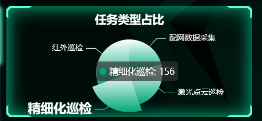
饼图我一样在itemStyle的color中设置了渐变色。饼图的尺寸是通过series中的radius来控制的,位置是center来控制的。
| let option = { | |
| title: { | |
| text: ‘任务类型占比’, | |
| top: “5%”, | |
| left: ‘center’, | |
| textStyle: { | |
| color: “#fff” | |
| } | |
| }, | |
| tooltip: { | |
| trigger: ‘item’ | |
| }, | |
| series: [ | |
| { | |
| type: ‘pie’, | |
| animationDuration: 3000, | |
| radius:”60%”, | |
| animationEasing: “cubicInOut”, | |
| center: [“50%”, “60%”],//饼图位置 | |
| label: { | |
| color: “#fff” | |
| }, | |
| emphasis: { | |
| label: { | |
| show: true, | |
| fontSize: ’20’, | |
| fontWeight: ‘bold’ | |
| } | |
| }, | |
| data: [], | |
| } | |
| ] | |
| }; | |
| chartData.seriesData.forEach(s => { | |
| option.series[0].data.push( | |
| { | |
| value: s.value, | |
| name: s.name, | |
| itemStyle: { | |
| color: new echarts.graphic.LinearGradient(1, 1, 1, 0, [ | |
| { | |
| offset: 0, | |
| color: this.dataVColor[0] | |
| }, | |
| { | |
| offset: 1, | |
| color: “#fff” | |
| } | |
| ]) | |
| } | |
| } | |
| ) | |
| }); | |
| await (option && this.pieChart.setOption(option));//设置数据 |
环图
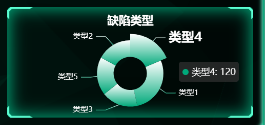
环图其实就是饼图的变形。将series中的radius设置为两个元素的数组即可,数值为内外环的半径比。
| let option = { | |
| title: { | |
| text: ‘缺陷类型’, | |
| top: “5%”, | |
| left: ‘center’, | |
| textStyle: { | |
| color: “#fff” | |
| } | |
| }, | |
| tooltip: { | |
| trigger: ‘item’ | |
| }, | |
| series: [ | |
| { | |
| type: ‘pie’, | |
| animationDuration: 3000, | |
| animationEasing: “cubicInOut”, | |
| radius: [‘30%’, ‘60%’],//内外环半径比 | |
| center: [“50%”, “60%”],//饼图位置 | |
| label: { | |
| color: “#fff” | |
| }, | |
| emphasis: { | |
| label: { | |
| show: true, | |
| fontSize: ’20’, | |
| fontWeight: ‘bold’ | |
| } | |
| }, | |
| data: [] | |
| } | |
| ] | |
| }; | |
| chartData.seriesData.forEach(s => { | |
| option.series[0].data.push( | |
| { | |
| value: s.value, | |
| name: s.name, | |
| itemStyle: { | |
| color: new echarts.graphic.LinearGradient(1, 1, 1, 0, [ | |
| { | |
| offset: 0, | |
| color: this.dataVColor[0] | |
| }, | |
| { | |
| offset: 1, | |
| color: “#fff” | |
| } | |
| ]) | |
| } | |
| } | |
| ) | |
| }); | |
| await (option && this.ringChart.setOption(option));//设置数据 |
柱状图
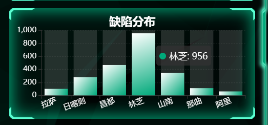
柱状图也一样设置了渐变色。每个柱子后面的阴影是通过series中的showBackground设置的。
| let option = { | |
| title: { | |
| text: ‘缺陷分布’, | |
| top: “5%”, | |
| left: ‘center’, | |
| textStyle: { | |
| color: “#fff” | |
| } | |
| }, | |
| tooltip: { | |
| trigger: ‘item’ | |
| }, | |
| grid: { | |
| left: ‘3%’, | |
| top: “20%”, | |
| right: ‘4%’, | |
| bottom: ‘3%’, | |
| containLabel: true | |
| }, | |
| xAxis: { | |
| type: ‘category’, | |
| data: [], | |
| axisLabel: { | |
| color: “#fff”, | |
| interval: 0, | |
| rotate: 20, | |
| }, | |
| }, | |
| yAxis: { | |
| type: ‘value’, | |
| axisLabel: { | |
| color: “#fff”, | |
| }, | |
| splitLine: { | |
| show: true,//网格设置 | |
| lineStyle: { | |
| color: “#70707033”, | |
| width: 1, | |
| type: “dotted”,//虚线 | |
| }, | |
| }, | |
| }, | |
| series: [ | |
| { | |
| type: ‘bar’, | |
| animationDuration: 3000, | |
| animationEasing: “cubicInOut”, | |
| showBackground: true, | |
| label: { | |
| color: “#fff” | |
| }, | |
| data: [], | |
| color: new echarts.graphic.LinearGradient(0, 0, 1, 1, [ | |
| { | |
| offset: 1, | |
| color: this.dataVColor[0] | |
| }, | |
| { | |
| offset: 0, | |
| color: “#ffffff” | |
| } | |
| ]) | |
| } | |
| ] | |
| }; | |
| option.xAxis.data = chartData.xAxisData; | |
| chartData.seriesData.forEach(s => { | |
| option.series[0].data.push(s); | |
| }); | |
| await (option && this.histogramChart.setOption(option));//设置数据 |
关系图

本来想用3d力导向图插件3d-force-graph的,但后面发现echarts自己也有类似的功能graph,直接设置series的layout即可,它有三种值:none(无任何布局),circular(环形布局)、force(力引导布局)。我用了circular,只有点,没有连线。
| let option = { | |
| title: { | |
| text: ‘巡检工作待办’, | |
| top: “1%”, | |
| left: ‘center’, | |
| textStyle: { | |
| color: “#fff” | |
| } | |
| }, | |
| // tooltip: { | |
| // trigger: ‘item’ | |
| // }, | |
| series: [{ | |
| type: ‘graph’, | |
| layout: ‘circular’,//环形布局 | |
| scaleLimit: { | |
| min: .5,//缩放限制 | |
| max: 2 | |
| }, | |
| zoom: .7, | |
| roam: false, | |
| label: { | |
| normal: { | |
| color: “#fff”, | |
| show: true, | |
| position: ‘inside’, | |
| fontSize: 14, | |
| fontStyle: ‘900’, | |
| } | |
| }, | |
| data: [] | |
| }] | |
| }; | |
| chartData.seriesData.forEach(s => { | |
| option.series[0].data.push( | |
| { | |
| name: s.name, | |
| value: s.value, | |
| symbolSize: Math.round((s.value / maxSymbolSize) * 100),//尺寸 | |
| draggable: true,//允许拖拽 | |
| itemStyle: { | |
| color: new echarts.graphic.LinearGradient(0, 0, 1, 1, [ | |
| { | |
| offset: 0, | |
| color: this.dataVColor[0] | |
| }, | |
| { | |
| offset: 1, | |
| color: “#fff” | |
| } | |
| ]) | |
| } | |
| } | |
| ) | |
| }); | |
| await (option && this.atlasChart.setOption(option));//设置数据 |
轮播图
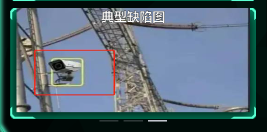
这是直接用了element的走马灯组件,自己添加图片即可。
| <el-carousel :height=“carouselHeight” indicator-position=“outside” arrow=“never” :autoplay=“true” | |
| :interval=“2000”> | |
| <el-carousel-item v-for=“item in defectImgList” :key=“item.name”> | |
| <img :src=“item.img” fit=“fill”> | |
| </el-carousel-item> | |
| </el-carousel> |
进度仪表图
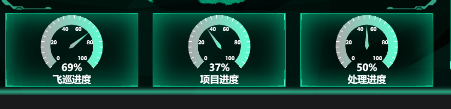
这是具体配置:
| let option = { | |
| title: { | |
| text: ‘\n{a|’ + chartData.name + ‘}’, | |
| x: ‘center’, | |
| y: ‘65%’, | |
| bottom: “0”, | |
| textStyle: { | |
| color: “#ffffff”, | |
| rich: { | |
| a: { | |
| fontSize: 15, | |
| fontWeight: 900 | |
| }, | |
| } | |
| } | |
| }, | |
| series: [ | |
| { | |
| type: ‘gauge’, | |
| radius: ‘86%’,//仪表盘半径 | |
| center: [‘50%’, ‘45%’],//仪表盘位置 | |
| splitNumber: 5, | |
| animationDuration: 3000, | |
| animationEasing: “cubicInOut”, | |
| axisLine: { | |
| lineStyle: { | |
| width: 15, | |
| color: [ | |
| [1, new echarts.graphic.LinearGradient(1, 1, 0, 1, [ | |
| { | |
| offset: 0, | |
| color: this.dataVColor[1] | |
| }, | |
| { | |
| offset: 1, | |
| color: “#aaa” | |
| } | |
| ])] | |
| ] | |
| } | |
| }, | |
| //指针 | |
| pointer: { | |
| width: 3, | |
| length: ‘70%’, | |
| }, | |
| //小刻度 | |
| axisTick: { | |
| length: 5, | |
| lineStyle: { | |
| color: ‘#fff’, | |
| width: 1 | |
| } | |
| }, | |
| //大刻度 | |
| splitLine: { | |
| show: false, | |
| length: 10, | |
| lineStyle: { | |
| color: ‘#fff’, | |
| width: 2 | |
| } | |
| }, | |
| //刻度标签 | |
| axisLabel: { | |
| color: ‘#fff’, | |
| distance: 5, | |
| fontSize: 8, | |
| fontWeight: 900, | |
| }, | |
| detail: { | |
| valueAnimation: false, | |
| formatter: ‘{value}%’, | |
| color: ‘#fff’, | |
| fontSize: 15, | |
| fontWeight: 900, | |
| padding: [30, 0, 0, 0] | |
| }, | |
| data: [ | |
| { | |
| value: chartData.value | |
| } | |
| ] | |
| } | |
| ] | |
| }; | |
| await (option && this.progressChart.setOption(option));//设置数据 |
图表信息框动画
图表信息框自己显示轮播,其实是利用的echartsAutoTooltip.js这个东西,东西不大,这是他的源码:
| export const autoToolTip = (chart, chartOption, options) => { | |
| var defaultOptions = { | |
| interval: 2000, | |
| loopSeries: false, | |
| seriesIndex: 0, | |
| updateData: null, | |
| }; | |
| if (!chart || !chartOption) { | |
| return {}; | |
| } | |
| var dataIndex = 0; // 数据索引,初始化为-1,是为了判断是否是第一次执行 | |
| var seriesIndex = 0; // 系列索引 | |
| var timeTicket = 0; | |
| var seriesLen = chartOption.series.length; // 系列个数 | |
| var dataLen = 0; // 某个系列数据个数 | |
| var chartType; // 系列类型 | |
| var first = true; | |
| // 不循环series时seriesIndex指定显示tooltip的系列,不指定默认为0,指定多个则默认为第一个 | |
| // 循环series时seriesIndex指定循环的series,不指定则从0开始循环所有series,指定单个则相当于不循环,指定多个 | |
| // 要不要添加开始series索引和开始的data索引? | |
| if (options) { | |
| options.interval = options.interval || defaultOptions.interval; | |
| options.loopSeries = options.loopSeries || defaultOptions.loopSeries; | |
| options.seriesIndex = options.seriesIndex || defaultOptions.seriesIndex; | |
| options.updateData = options.updateData || defaultOptions.updateData; | |
| } else { | |
| options = defaultOptions; | |
| } | |
| // 如果设置的seriesIndex无效,则默认为0 | |
| if (options.seriesIndex < 0 || options.seriesIndex >= seriesLen) { | |
| seriesIndex = 0; | |
| } else { | |
| seriesIndex = options.seriesIndex; | |
| } | |
| function autoShowTip() { | |
| function showTip() { | |
| // 判断是否更新数据 | |
| if ( | |
| dataIndex === 0 && | |
| !first && | |
| typeof options.updateData === “function” | |
| ) { | |
| options.updateData(); | |
| chart.setOption(chartOption); | |
| } | |
| var series = chartOption.series; | |
| chartType = series[seriesIndex].type; // 系列类型 | |
| dataLen = series[seriesIndex].data.length; // 某个系列的数据个数 | |
| var tipParams = { seriesIndex: seriesIndex }; | |
| switch (chartType) { | |
| case “map”: | |
| case “pie”: | |
| case “chord”: | |
| tipParams.name = series[seriesIndex].data[dataIndex].name; | |
| break; | |
| case “radar”: // 雷达图 | |
| tipParams.seriesIndex = seriesIndex; | |
| tipParams.dataIndex = dataIndex; | |
| break; | |
| default: | |
| tipParams.dataIndex = dataIndex; | |
| break; | |
| } | |
| if ( | |
| chartType === “pie” ||//饼图 | |
| chartType === “radar” || | |
| chartType === “map” || | |
| chartType === “scatter” || | |
| chartType === “line” ||//折线图 | |
| chartType === “bar” ||//柱状图 | |
| chartType === “graph” | |
| ) { | |
| // 取消之前高亮的图形 | |
| chart.dispatchAction({ | |
| type: “downplay”, | |
| seriesIndex: options.loopSeries | |
| ? seriesIndex === 0 | |
| ? seriesLen – 1 | |
| : seriesIndex – 1 | |
| : seriesIndex, | |
| dataIndex: dataIndex === 0 ? dataLen – 1 : dataIndex – 1, | |
| }); | |
| // 高亮当前图形 | |
| chart.dispatchAction({ | |
| type: “highlight”, | |
| seriesIndex: seriesIndex, | |
| dataIndex: dataIndex, | |
| }); | |
| } | |
| // 显示 tooltip | |
| tipParams.type = “showTip”; | |
| chart.dispatchAction(tipParams); | |
| dataIndex = (dataIndex + 1) % dataLen; | |
| if (options.loopSeries && dataIndex === 0 && !first) { | |
| // 数据索引归0表示当前系列数据已经循环完 | |
| seriesIndex = (seriesIndex + 1) % seriesLen; | |
| } | |
| first = false; | |
| } | |
| showTip(); | |
| timeTicket = setInterval(showTip, options.interval); | |
| } | |
| // 关闭轮播 | |
| function stopAutoShow() { | |
| if (timeTicket) { | |
| clearInterval(timeTicket); | |
| timeTicket = 0; | |
| if ( | |
| chartType === “pie” || | |
| chartType === “radar” || | |
| chartType === “map” || | |
| chartType === “scatter” || | |
| chartType === “line” || | |
| chartType === “bar” || | |
| chartType === “graph” | |
| ) { | |
| // 取消高亮的图形 | |
| chart.dispatchAction({ | |
| type: “downplay”, | |
| seriesIndex: options.loopSeries | |
| ? seriesIndex === 0 | |
| ? seriesLen – 1 | |
| : seriesIndex – 1 | |
| : seriesIndex, | |
| dataIndex: dataIndex === 0 ? dataLen – 1 : dataIndex – 1, | |
| }); | |
| } | |
| } | |
| } | |
| var zRender = chart.getZr(); | |
| function zRenderMouseMove(param) { | |
| if (param.event) { | |
| // 阻止canvas上的鼠标移动事件冒泡 | |
| param.event.cancelBubble = true; | |
| } | |
| stopAutoShow(); | |
| } | |
| // 离开echarts图时恢复自动轮播 | |
| function zRenderGlobalOut() { | |
| if (!timeTicket) { | |
| autoShowTip(); | |
| } | |
| } | |
| // 鼠标在echarts图上时停止轮播 | |
| chart.on(“mousemove”, stopAutoShow); | |
| zRender.on(“mousemove”, zRenderMouseMove); | |
| zRender.on(“globalout”, zRenderGlobalOut); | |
| autoShowTip(); | |
| return { | |
| clearLoop: function () { | |
| if (timeTicket) { | |
| clearInterval(timeTicket); | |
| timeTicket = 0; | |
| } | |
| chart.off(“mousemove”, stopAutoShow); | |
| zRender.off(“mousemove”, zRenderMouseMove); | |
| zRender.off(“globalout”, zRenderGlobalOut); | |
| }, | |
| }; | |
| }; |
球体实现

球体是用了three.js来实现的,具体可以看我之前的疫情可视化文章(https://www.cnblogs.com/xi12/p/16690119.html),实现原理是一样,直接创建宇宙、绘制球体、球面打点,一气呵成。
数值动画

这几个数值是有递增动画的,我项目整体风格使用的dataV(http://datav.jiaminghi.com/guide/)实现的,dataV里面也有数值增加动画。但我没用那个,可以利用vue的数据响应式很方便即可实现。
| <!–数字增加动画组件–> | |
| <template> | |
| <span class=“num-span” :data-time=“time” :data-value=“value”>{{ addNum }}</span> | |
| </template> | |
| <script> | |
| export default { | |
| props: { | |
| //动画时间 | |
| time: { | |
| type: Number, | |
| default: 2 | |
| }, | |
| //停止时的值 | |
| value: { | |
| type: Number, | |
| default: 0 | |
| }, | |
| //千位的逗号 | |
| thousandSign: { | |
| type: Boolean, | |
| default: () => false | |
| } | |
| }, | |
| data() { | |
| return { | |
| oldValue: 0, | |
| addNum: 0,//响应式的数值 | |
| }; | |
| }, | |
| watch: { | |
| value(val) { | |
| this.oldValue = 0; | |
| this.addNum = 0;//响应式的数值 | |
| this.startAnimation();//值改变时开始动画 | |
| } | |
| }, | |
| mounted() { | |
| this.startAnimation(); | |
| }, | |
| methods: { | |
| startAnimation() { | |
| let value = this.value – this.oldValue; | |
| let step = (value * 10) / (this.time * 100); | |
| let current = 0; | |
| let start = this.oldValue; | |
| //定时器 | |
| let t = setInterval(() => { | |
| start += step; | |
| if (start > value) { | |
| clearInterval(t); | |
| start = value; | |
| t = null; | |
| } | |
| if (current === start) { | |
| return; | |
| } | |
| current = Math.floor(start);//取整 | |
| this.oldValue = current; | |
| if (this.thousandSign) { | |
| this.addNum = current.toString().replace(/(\d)(?=(?:\d{3}[+]?)+$)/g, ‘$1,’);//添加千位符 | |
| } else { | |
| this.addNum = current.toString();//无千位符 | |
| } | |
| }, 10) | |
| } | |
| }, | |
| }; | |
| </script> | |
| <style scoped lang=‘scss’> | |
| .num-span { | |
| /*开启gpu加速*/ | |
| transform: translateZ(0); | |
| } | |
| </style> |
特效背景
我比较懒,背景可不是我自己写的,我直接一个iframe,把别人代码一扔,他就出来了⊙﹏⊙∥。源码在我项目的这个路径下:
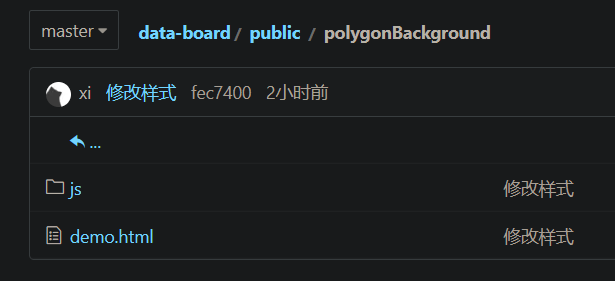
背景颜色可以通过Victor.js文件下的Victor方法里的diffuse值调节。
结语
感觉可视化项目难度不大(当然这只是对于我这种只会用轮子的懒人加缝合怪来说),无非就是熟练利用echarts配置,但麻烦的是效果需要自己仔细调节。